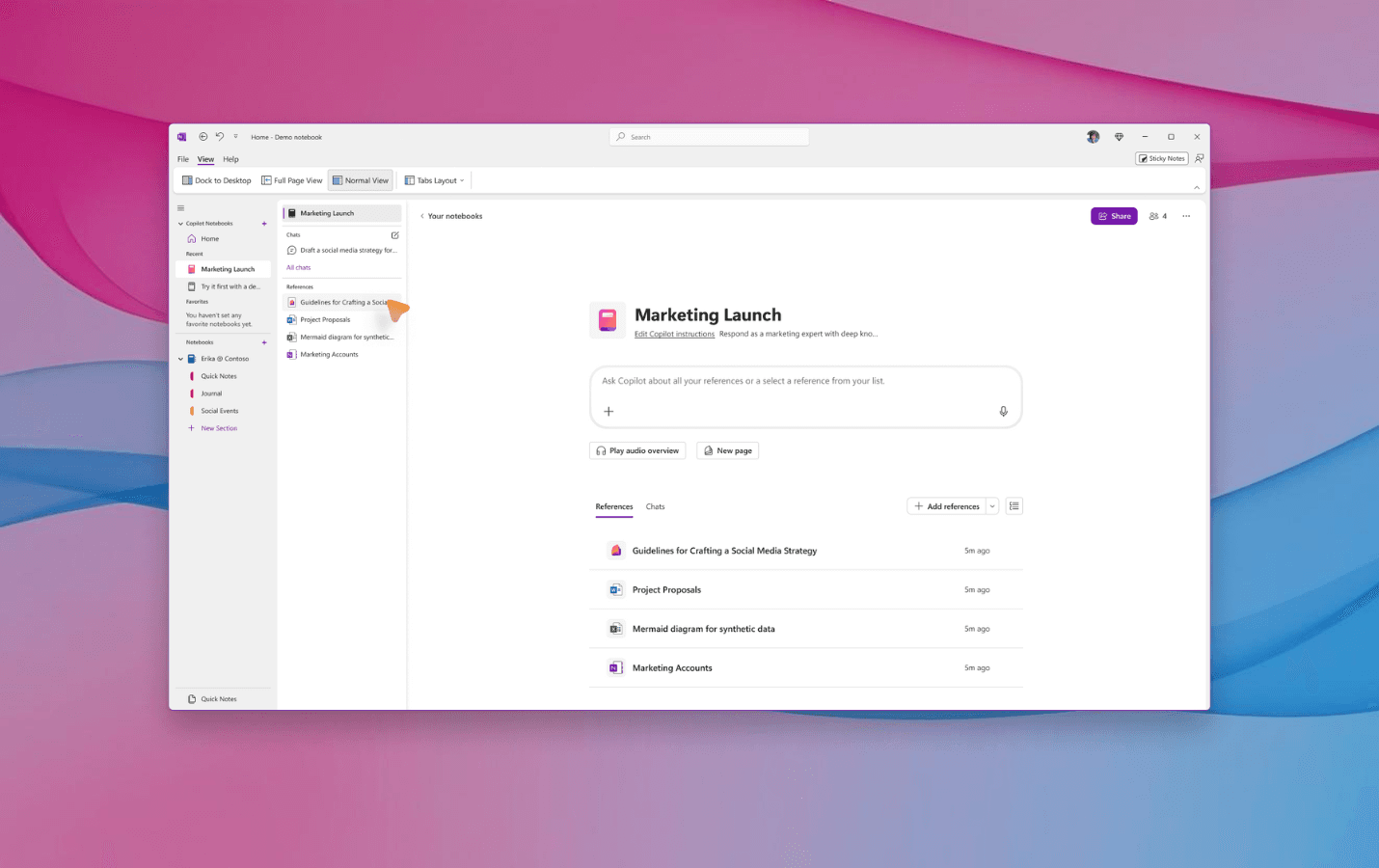
OneNote for Windows now includes special notebooks powered by Copilot. They are intelligent spaces that bring together everything you need: Copilot chats, files, pages, notes and links. All in one place.
These notebooks help you make sense of difficult topics, gather information and create more useful content. They are ideal for organizing ideas and working with greater clarity.
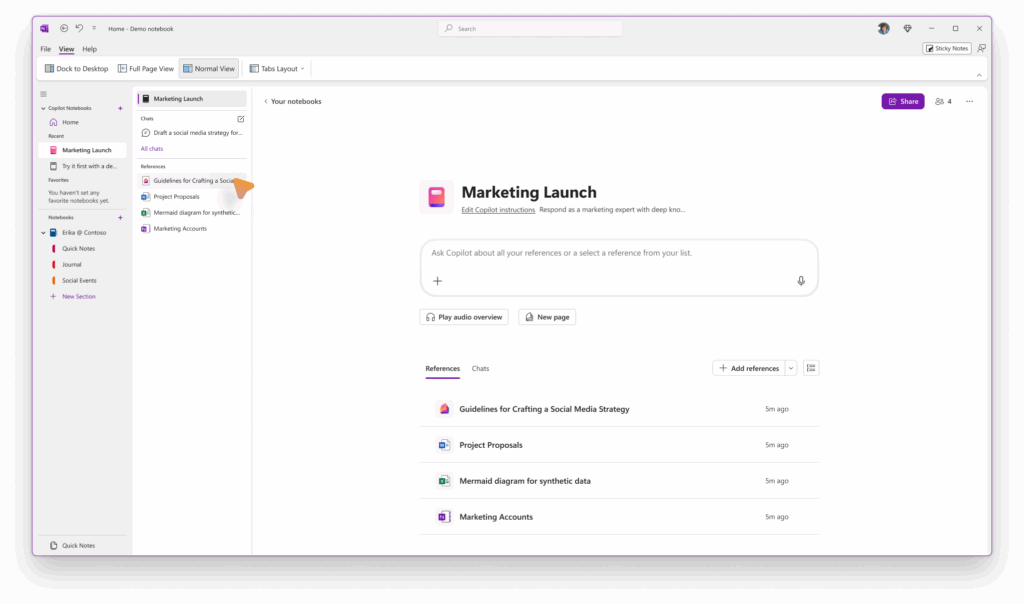
What are they for?
- Turning meeting notes into concrete tasks.
- Building a knowledge base for projects.
- Writing content for product launches.
Copilot keeps everything organized and easy to use.
How do you use them?
- Open OneNote on Windows.
- Look for the “Copilot Notebooks” section in the list on the left.
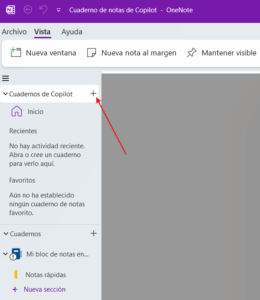
3.Select one that already exists or create a new one from the left-hand side panel by clicking the “+” icon.
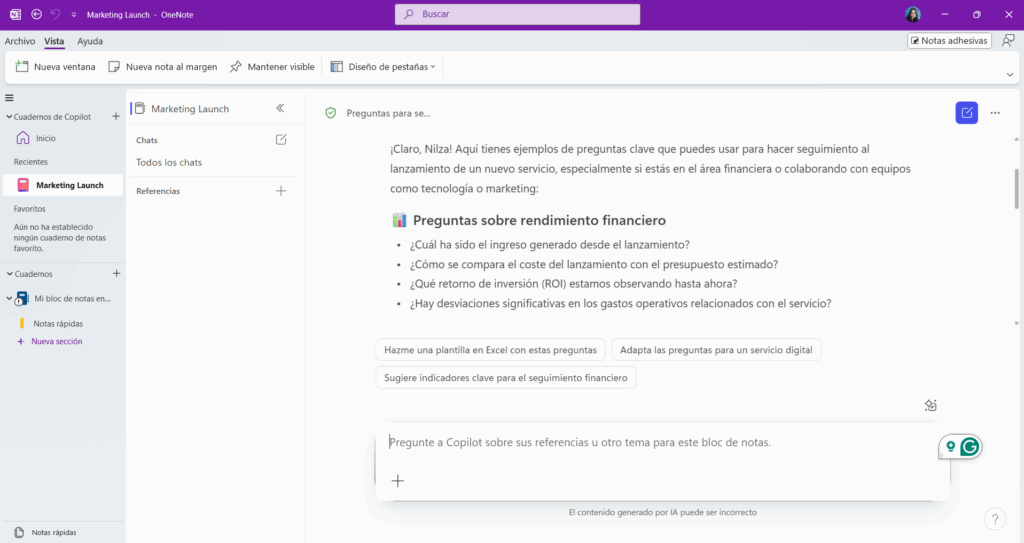
Things you can try
- Asking Copilot questions and getting answers with context.
- Writing summaries and tasks to share with your team.
- Listening to an audio version of the content.
What doesn't work yet
- You can only add up to 20 files as references.
- You can't use entire OneNote sections, only individual pages.
- Some OneNote features are unavailable, such as tags, handwriting, templates, protected sections, the immersive reader and offline use.
Who can use it?
It is available to companies that have:
- Version 2504 (build 18827.20128) or newer.
- A Microsoft 365 Copilot license.
- A SharePoint or OneDrive license.
It is not available to users on Personal or Family plans.
We invite you to learn more about the licensing requirements and available plans.
Want to share your feedback?
You can use the “thumbs up” or “thumbs down” buttons in Copilot. You can also go to “Help > Feedback” in OneNote.