How to Run a Trial Balance in Business Central? - BETABOX
This guide explains how to prepare a trial balance in Business Central. The process is broken down step by step so it is easy to follow and run.

This section explains how to prepare a trial balance using Business Central. The process is described step by step to make it easier to understand and carry out.
Step by step to obtain the trial balance
\1. Go to the Business Central main menu and open the search, or press Alt+Q to open it.
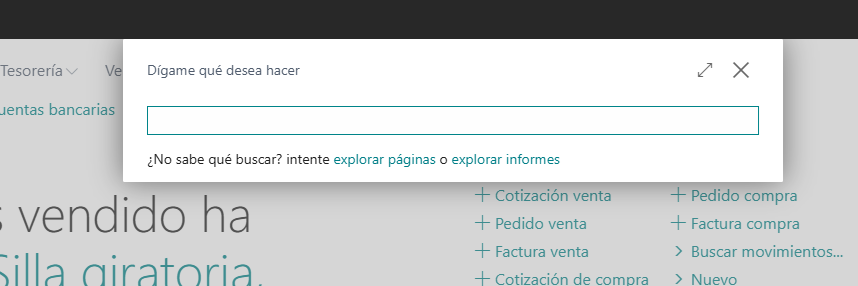
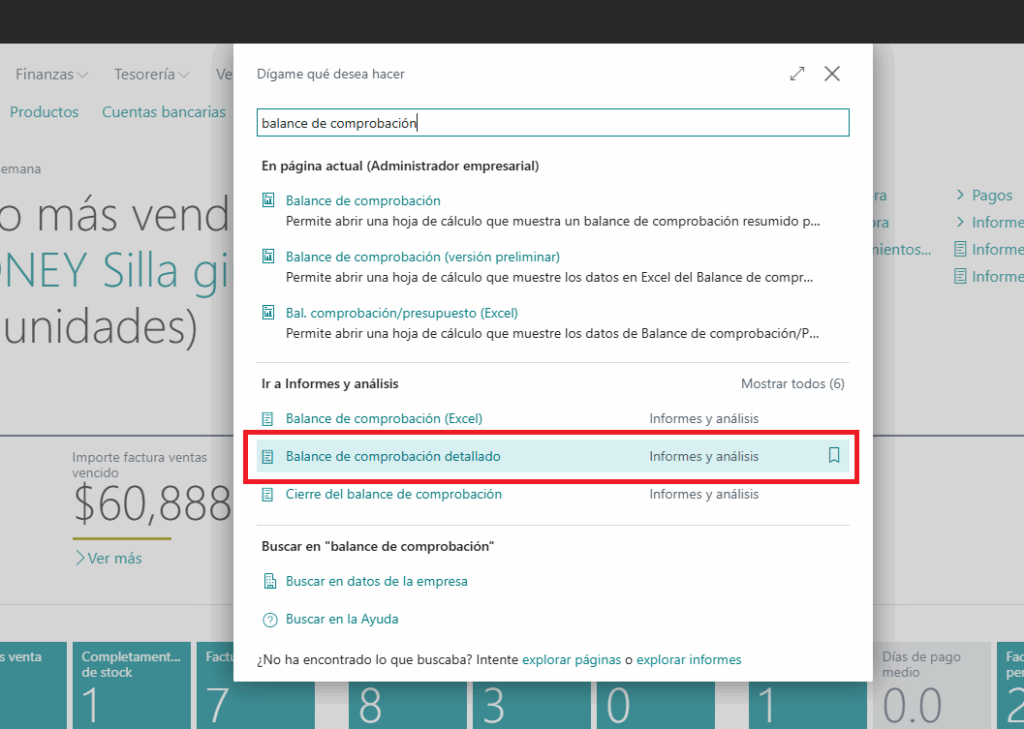
\2. Select the option for “Trial balance”. Under the Go to reports and analysis section, select the Detailed trial balance option.
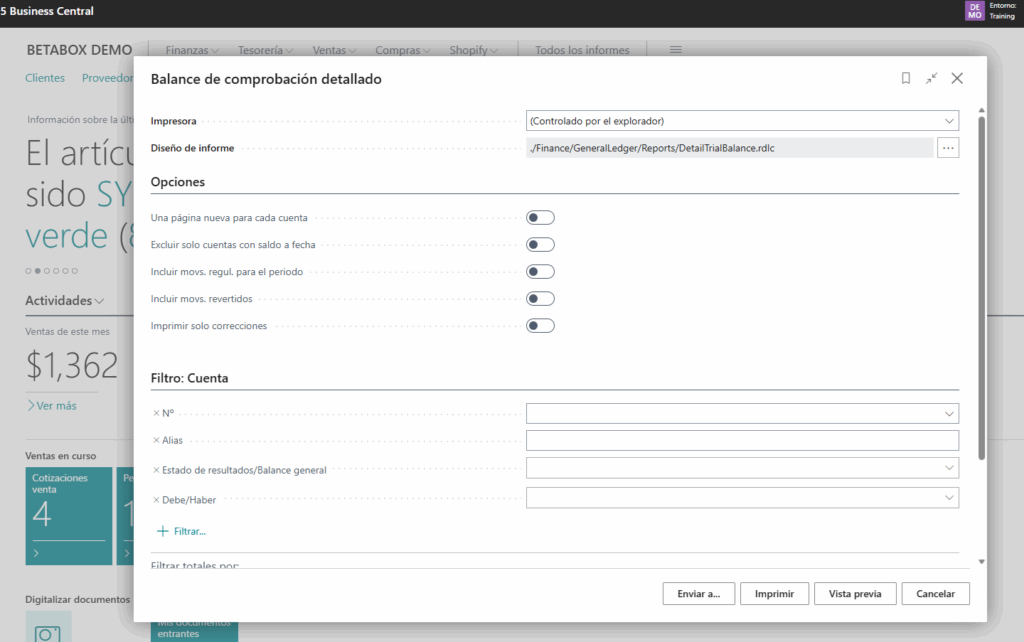
\3. Set the required parameters, such as the accounting period and the company you want to generate the report for.
Use a new page for each account: Specifies whether the information for each general ledger account is printed on a new page when you have chosen to include two or more general ledger accounts in the report.
Exclude only accounts with a balance at date: Specifies whether you want to leave out of the report the entries for general ledger accounts that have a balance, even if they have no period balance during the selected period.
Include adjusting entries for the period: Specifies whether you want the report to include closing entries. This is useful if the report covers a full fiscal year. Closing entries are linked to a fictitious date that falls between the last day of one fiscal year and the first day of the next. Those entries have a C before the date, for example C123194. If you do not select this field, no closing entry is shown.
Include reversed entries: Specifies whether you want to include reversed entries in the report.
Print corrections only: Specifies whether you want the report to show only the reversed entries and the entries that correct them.
No.: Specifies the general ledger account filter you want in the report; it follows the standard Business Central filter formats.
Alias: Filters by general ledger account alias.
Income statement/Balance sheet: Lets you filter by balance sheet accounts, income statement accounts, or both.
Debit/Credit: Lets you filter by the nature of the general ledger account, those that increase on the debit side, on the credit side, or both.
Date filter: lets you set the date range in a FROM..TO format, for example 01/03/2024… 01/06/2024, which will add up all the entries between the dates mentioned.
\4. Check that all the data is correct before going ahead and generating the report.
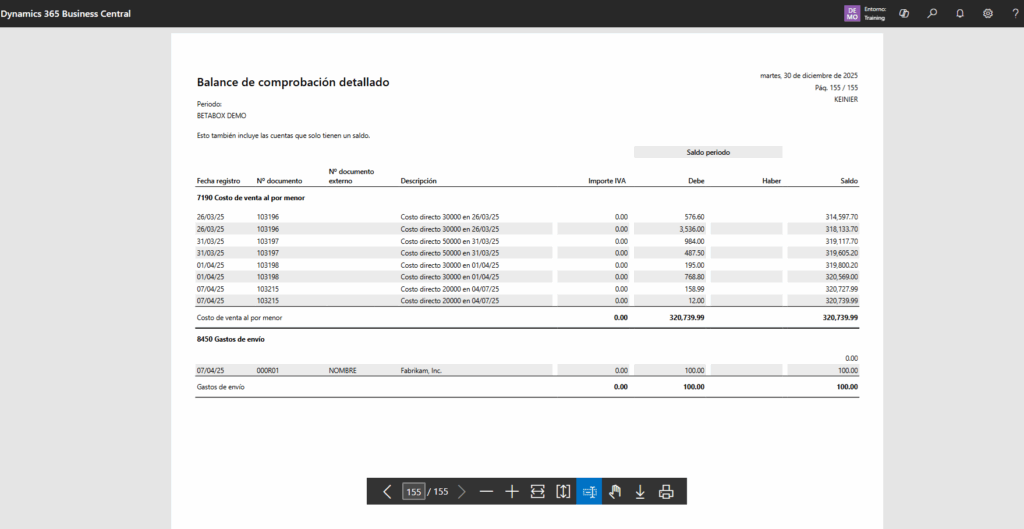
\5. Click “Print” or “Preview” to get the trial balance on screen or in a downloadable format.
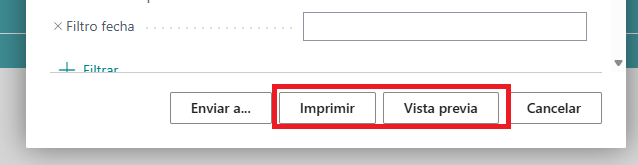
The result will be a downloadable report of the balance
Final considerations
By following each of the steps described, you will be able to obtain an accurate trial balance in Business Central, ensuring an efficient review of your company's accounting position. The process makes it easier to access up-to-date financial information, allowing you to make decisions more quickly and with greater confidence. The accuracy of the trial balance depends on applying the filters correctly and verifying the data before generating the report, which is essential to maintaining the integrity of your accounting information and avoiding possible errors when presenting results.