Accessibility and Usability Upgrades in the New Outlook
Improve your email experience with the latest accessibility and usability enhancements in the new Outlook for Windows, including new shortcuts.

The revamped Outlook for Windows brings the latest features, intelligent assisted capabilities and a modern, simplified design to your Outlook app. You can tailor it to your style and do more with the new Outlook for Windows. The new Outlook improves accessibility and usability, while maintaining the efficiency and productivity you expect for everyday tasks.
To be clear, the new Outlook for Windows is the future of Mail, Calendar and People on Windows. Windows 11 will include the new Outlook as the default mailbox, with free access and subscription options.
- Microsoft will end support for the Mail and Calendar apps at the end of 2024, and the new Outlook will become the default email and calendar service on Windows.
- Although the new Outlook is available for both personal and commercial use, classic Outlook will remain accessible. Learn more about the migration timeline that will play out over several years.
Outlook now includes Immersive Reader, letting you listen to emails and adjust the text for better readability. A dictation feature has also been added, converting speech to text to compose emails. Users can magnify email content and adjust themes to match their display preferences. In addition, the Accessibility Checker is available to identify any accessibility issues in the emails you compose, helping you create content that is accessible to everyone.
The Outlook team continues to listen to community feedback and improve based on it. Usability and accessibility requests are prioritized, ensuring that technical support meets the expectations of Mail and Calendar users.
Newly added keyboard shortcuts
The new Outlook for Windows offers many keyboard shortcuts, including those from the classic version and Outlook on the web. You can use the F6 key to move quickly between the different areas of the app, the Esc key to close windows, and much more. The full list of keyboard shortcuts available in the new Outlook can be found in Microsoft support, by navigating to Settings > General accessibility, or by pressing the '?' key inside the app.
The Outlook team has added keyboard shortcuts to simplify common tasks such as reviewing messages, reading, composing emails and switching folders.
New Ctrl+Y shortcut added
Users can now use the familiar 'Ctrl + Y' keyboard shortcut to jump between folders. This key combination makes it easy to switch folders by typing one or more letters to quickly focus on the folder name that matches the keys pressed.
Greater efficiency with the Tab key
Navigating a message in the reading pane is now much faster. Previously, each time you pressed the 'Tab' key, focus moved to every button and link within the reading pane. Now, you can navigate grouped elements using the arrow keys and simply use the 'Tab' key to move focus to different parts of the message.
New Alt shortcut added
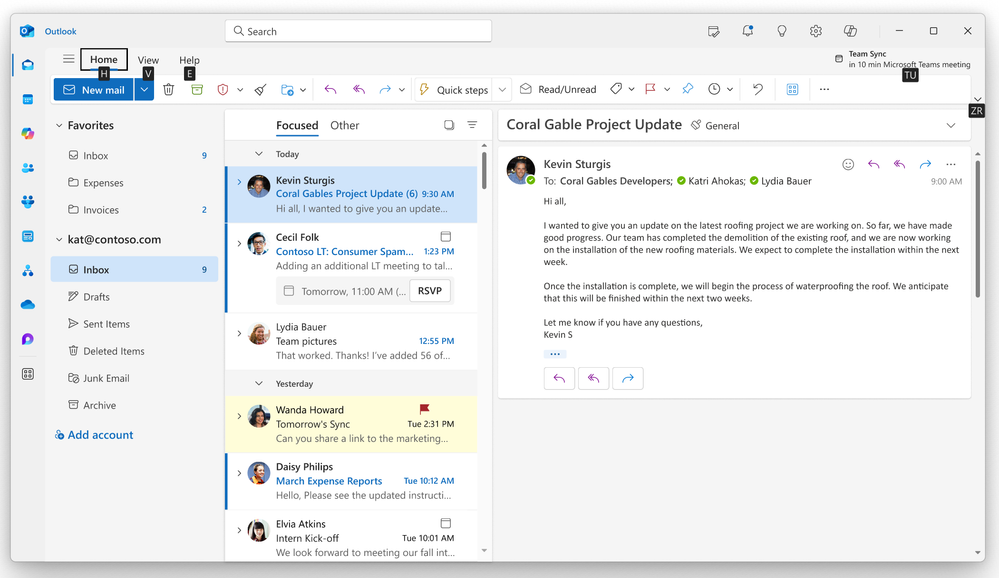
Users can now use the 'Alt' shortcut to invoke the ribbon key tips. This feature, which previously required 'Alt + Windows', can now be used by pressing 'Alt' alone, after feedback that the earlier combination was not easy to discover.
An improved experience for screen readers
In addition to implementing keyboard shortcuts so screen reader users can navigate the new Outlook for Windows efficiently, the team is also collaborating with assistive technology providers such as Narrator, JAWS and NVDA to create a smoother reading experience.
When you open an email, JAWS and NVDA now automatically read the entire message body aloud. Beyond focusing on the message body when an email is opened, focus states have been improved for other commands as well. For example, after launching the new Outlook or completing a search, the default focus goes directly to the first item in the message list rather than to the message list region as a whole. Also, after invoking the "skip to" links at the top of the window using keyboard navigation, focus goes directly to the message or to the message list item. These improvements minimize keyboard navigation, allowing screen reader users to focus on the most important information.
To improve the screen reader experience in Outlook, turn off the reading pane and use "Show each message separately." For more tips, visit basic tasks using a screen reader with email in Outlook on Microsoft support.
Upcoming keyboard and screen reader improvements
While more keyboard and screen reader capabilities have already been added to the new Outlook to meet the needs of common workflows in the Windows mail and calendar apps, development of new features continues and they will roll out over the coming months.
In October 2024, the Calendar module will allow navigation across time slots with the arrow keys. Work is also underway on keyboard scrolling between tabs and on support for reading messages with Narrator, JAWS and NVDA. The team strives to maintain parity across screen reader partners so users have similar experiences regardless of their preferred platform.
They will continue making further improvements to the usability of the new Outlook with keyboard, screen reader, magnification and other assistive technologies. To keep sharing feedback, users can go to the Help tab of the Outlook ribbon, select Feedback and mention "accessibility in the new Outlook" in the description box along with their comments.